
VELORA / GUIDED PRODUCT TOUR
From a customer request to an order ready to ship.
Follow a typical parts-sales workflow: find the customer, prepare a quote, record approval, and use linked inventory during fulfillment.
A short, self-guided walkthrough using real Velora screenshots. Example records come from separate demo workspaces; they are not one continuous transaction or a customer case study.
01 / THE CUSTOMER CALLS
Start with the relationship.
A customer asks for replacement parts. Open their profile to review contact details, notes, and related quotes before preparing the next proposal.
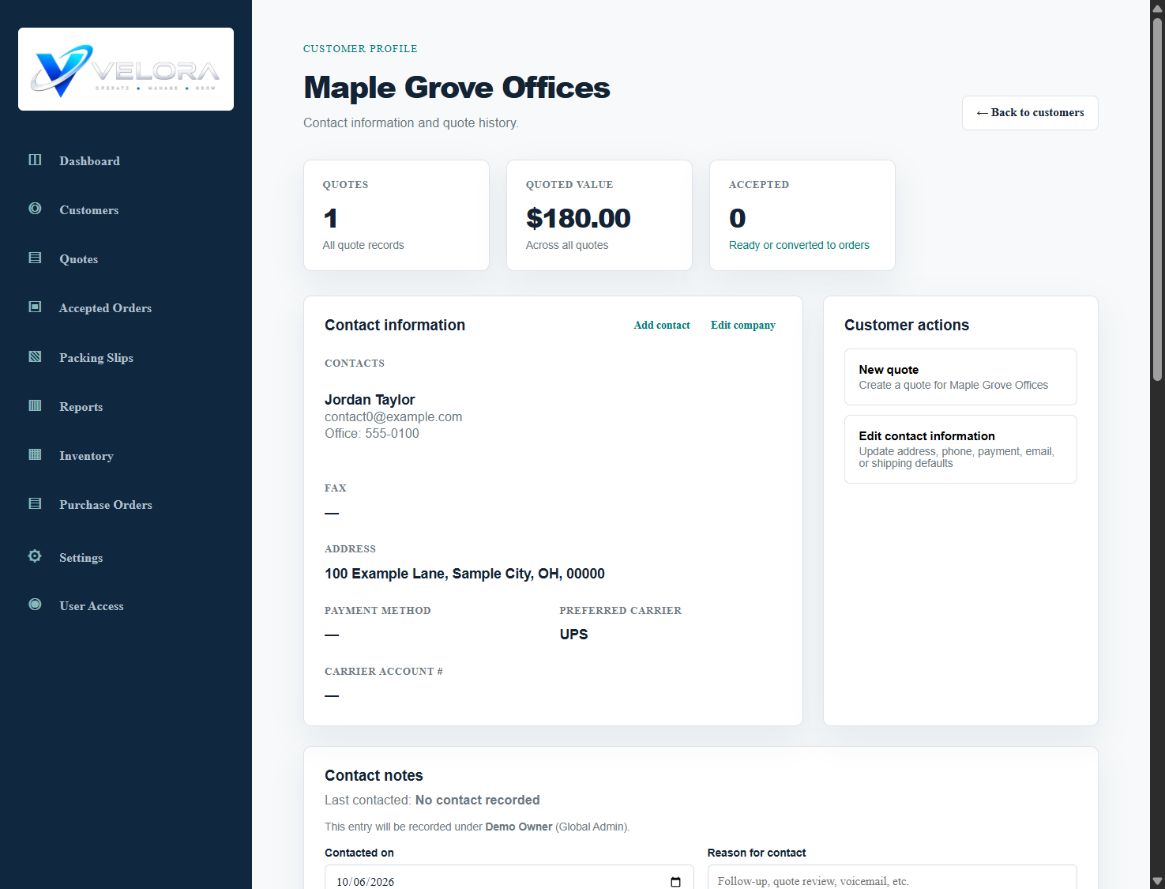
Your team records the request. This walkthrough does not assume incoming emails are automatically imported.
Next: prepare the quote →02 / PREPARE THE PROPOSAL
Keep the quote connected to the customer.
Create a parts quote with descriptions, quantities, and prices. If inventory is enabled, link each tracked part to its inventory record. Review the quote and send its PDF directly from Velora through the configured email integration.
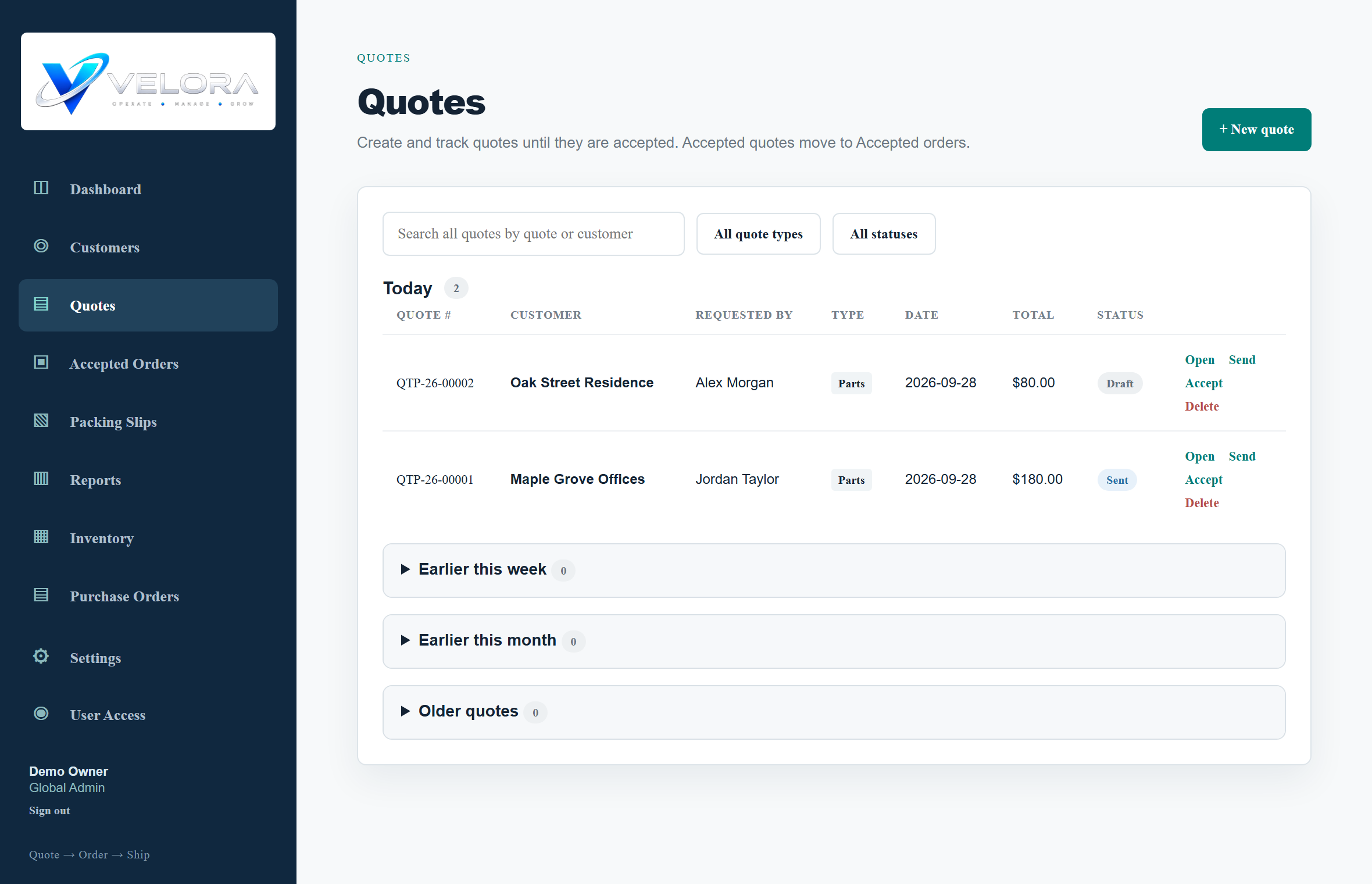
See how quote emailing works, including provider setup and the boundaries of the integration.
Next: record customer approval →03 / THE CUSTOMER APPROVES
Carry approved work into an order.
Your team records acceptance and chooses the approved quote items. The order carries the customer and item details forward. Linked stock availability is checked as work moves into the order workflow.
Confirm the approved items
Record what the customer agreed to, including the relevant order and PO details.
Prepare fulfillment
Create the packing slip from the order so the shipment carries the agreed customer and item information.
This step describes the supported workflow. Customer approval is recorded by your team; it is not an online checkout or e-signature flow.
Next: follow the stock →04 / PREPARE AND SHIP
See what is on hand and what is committed.
With inventory enabled, review on-hand, reserved, and available quantities. Marking a packing slip shipped deducts its linked inventory and records stock activity. Unlinked text-only lines do not automatically change stock.
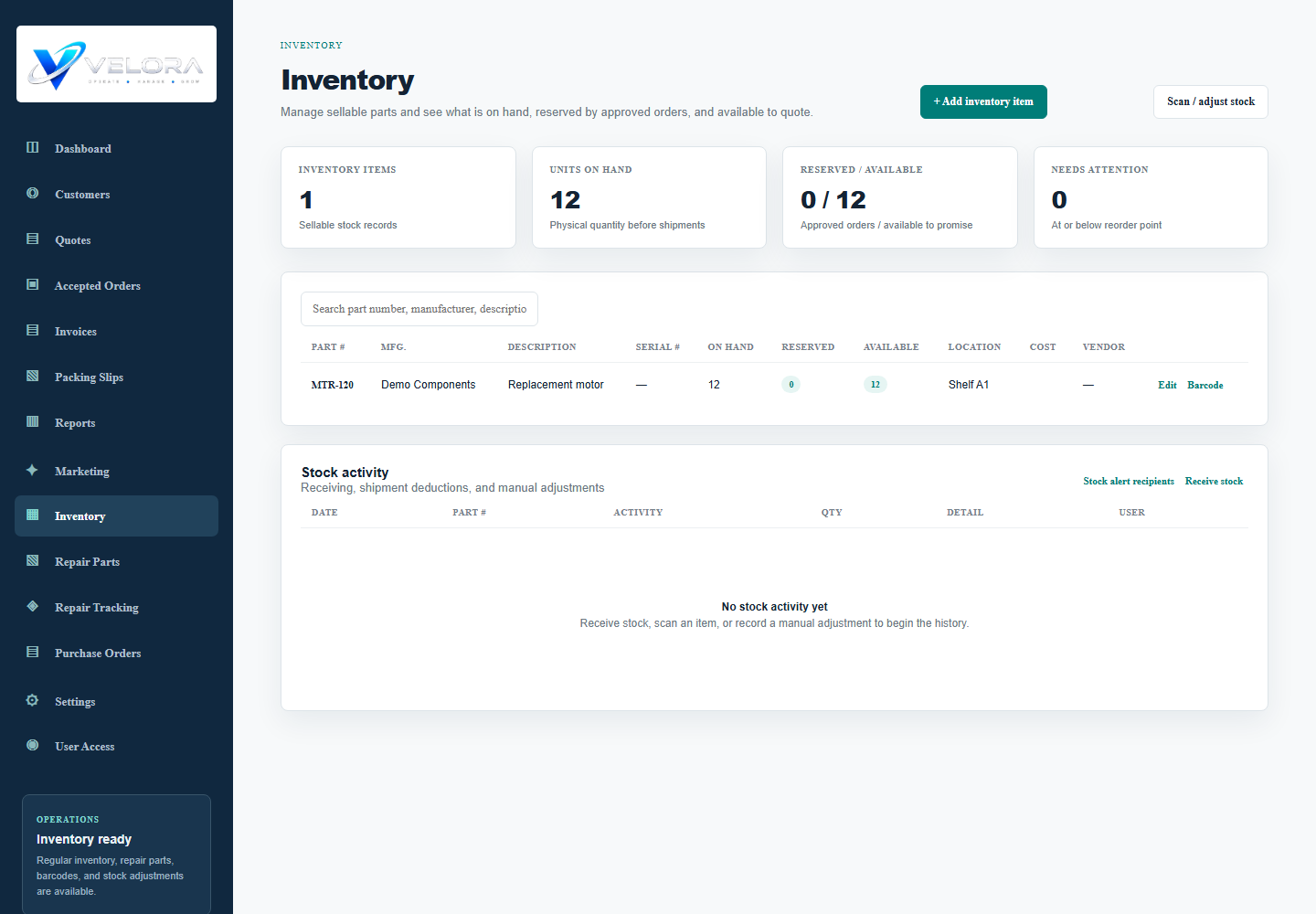
Inventory is optional. Explore inventory management or see the separate repair workflow.
See your own process in the demo.
Tell us what you sell or service and where work gets repeated. We will walk through the relevant modules and identify what can be configured or needs custom development.
Request a live walkthrough